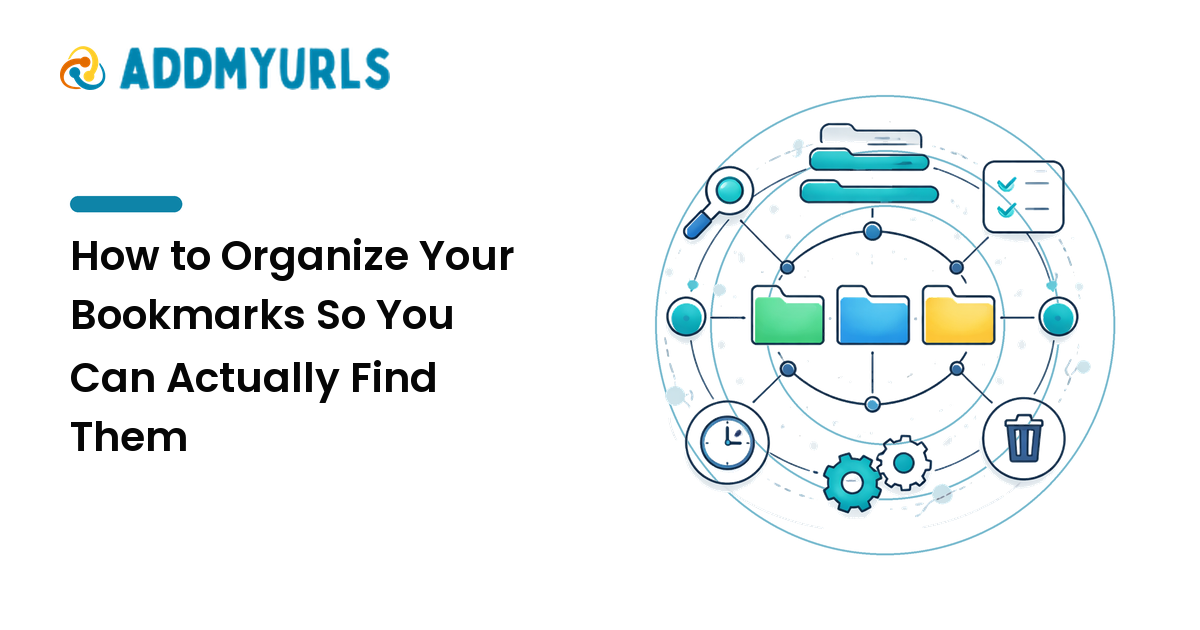
Most bookmark collections don't fail because people save too much. They fail because everything lands in one undifferentiated pile — an "Other Bookmarks" folder with 800 entries — so finding anything means scrolling forever or just re-Googling the page you already saved. The fix isn't a fancier app. It's a small, consistent system: decide what a bookmark is for before you file it, keep the structure shallow, name things so search can find them, and clean up on a schedule.
The short version: sort every bookmark into one of three buckets — Reference, Read Later, or Archive — lean on a shallow folder structure plus searchable names, and run a 15-minute cleanup once a month. That habit beats any tool.
Why bookmark collections turn into a graveyard
Saving is frictionless — one keystroke or one star — while filing takes a decision, so almost everyone saves into the default folder and moves on. Do that for a year and you have a heap, not a collection.
Three things make it worse:
- Two different jobs are mixed together. Some links are things you'll return to for years (your bank's login, a style guide, a favorite tool). Others are things you meant to read once. Piled into the same list, the one-time reads bury the keepers.
- Nothing expires or gets maintained. Pages move, get paywalled, or die outright — ordinary link rot — and duplicates accumulate because saving is faster than checking whether you already saved it.
- You stop trusting it. Once the collection is unreliable, you default back to search, and the bookmarks become dead weight you scroll past.
Keep the goal in mind: you're organizing for retrieval, not tidiness for its own sake. Every rule below earns its place by making a link faster to find later.
Start with three buckets before you touch folders
Before you build any folder tree, sort by purpose. Almost every bookmark is one of three things:
- Reference — you'll come back to it repeatedly. Tools, docs, a client's brand page, that one tax form. These deserve a real home and a good name.
- Read Later — you want to read it once, then you're done. Articles, threads, tutorials. This bucket should stay small and empty out regularly.
- Archive — finished with it, but you might need proof or a rerun later. Out of sight, still findable.
The most valuable move here is separating Read Later from Reference: unread articles are what clog a collection and bury the useful stuff. Give them their own bucket you deliberately drain, and your Reference folders stay trustworthy.
Folders vs. tags: when to use each
This is the question people stall on, so here's a plain answer: use both, for different jobs.
| Folders | Tags / keywords | |
|---|---|---|
| Structure | One home per item | Many labels per item |
| Best for | The primary category you'd instinctively look in | Cross-cutting topics that span categories |
| Support | Native in every browser | Needs a manager that supports it (or fake it in the title) |
| Weakness | An item can only live in one place | Sprawls if you invent a new tag every time |
Rule of thumb: put each bookmark in the one folder where you'd first go looking, and use tags — or a keyword in the title — for the attributes that cut across folders. A contractor invoice template might live in Work/Templates (folder) while carrying an [invoice] keyword so it surfaces alongside every other invoice-related link. If your browser has no real tags, don't fight it; bake the keyword into the bookmark's name, because browsers search the title.
A folder structure that actually scales
Keep it shallow — two levels, maximum. Depth is the enemy of retrieval: every extra level is one more decision you have to remember and repeat. A structure like this handles hundreds of links comfortably:
Bookmarks Bar
├── Work
│   ├── Clients
│   ├── Tools
│   └── Templates
├── Personal
│   ├── Finance
│   └── Home
├── Learning
├── Read Later
└── Archive
Two sizing rules keep it healthy:
- If a folder holds one or two items, it shouldn't exist — those links belong one level up.
- If a folder passes ~40–50 items, split it into the two or three sub-categories that are actually forming.
Aim for folders you can scan in a glance. A folder you have to scroll is a folder that needs splitting — or bookmarks that should have been deleted.
Name bookmarks so search finds them
This is the highest-leverage habit in the whole system, and almost nobody does it. Browsers and bookmark managers search the title and the URL, and default titles are frequently useless — "Home," "Dashboard," "Untitled Document." A saved page named "Dashboard" is invisible to your future self.
When you save something worth keeping, rewrite the title to what you'd actually type to find it:
- Front-load the distinctive word. "Stripe — API keys (dashboard)" beats "Dashboard," because you'll search Stripe, not Dashboard.
- Add the missing context a generic title drops: the company, the project, the purpose.
- Drop in a bracketed keyword for cross-cutting topics:
[recipe],[invoice],[gift-ideas]. That turns your address bar into an instant filter.
Ten seconds of renaming at save time saves minutes of hunting later, and it's what makes a shallow folder structure work — you find things by searching a good name, not by drilling through folders.
The 15-minute monthly cleanup
A collection stays usable only if you maintain it, and small-and-regular beats a massive annual purge you'll dread and skip. Put a recurring 15-minute block on your calendar and run this checklist:
- [ ] Drain Read Later. For each item: read it now, promote it to Reference, or delete it. It should be near-empty when you finish.
- [ ] Kill duplicates. Same page saved twice? Keep the better-named one.
- [ ] Fix or drop dead links. Anything that 404s or redirects to nowhere gets updated or removed — the slow decay of saved links is a real problem, and our guide to link management covers how to stay ahead of it.
- [ ] Re-file the default folder. Move anything that landed in "Other Bookmarks" into its real home.
- [ ] Rename junk titles. Give any "Untitled" or "Home" entry a searchable name.
- [ ] Archive finished projects. Move whole folders of done work to Archive so your active space stays lean.
Do this monthly and cleanup stays a quick tidy, never an all-day excavation.
When to move from browser bookmarks to a dedicated tool
Browser bookmarks are enough for a lot of people — and migrating 2,000 links to solve a problem you don't have is wasted effort. Match the tool to the failure you're actually hitting.
Stay with browser bookmarks if: you mostly work in one browser, you're under a few hundred links, and folders plus good names cover your searching.
Consider a dedicated bookmark manager if you need:
- Cross-browser or cross-device access that browser sync alone doesn't give you.
- Real tags and full-text search across everything you've saved.
- Saved snapshots — a stored copy of the page so the content survives even when the original link dies.
- Sharing or a public list — a collection or link-in-bio page you hand to other people.
Broadly, browser-native bookmarks win on zero setup and speed; read-later apps win at draining a reading queue; dedicated managers win on tags, search, and snapshots. Pick based on the one capability you keep wishing you had, not on features you'll never open.
Sync and back up so you never lose the collection
A collection you can't recover isn't an asset. Two safeguards cover you:
- Turn on browser sync so a reinstall or a new laptop doesn't wipe years of saving.
- Export periodically. Every browser and most managers export bookmarks to a portable HTML file. Keep a recent one. It's your backup, your escape hatch if a paid tool shuts down, and the cleanest way to migrate between tools without losing anything.
FAQ
How many bookmarks is too many?
There's no magic number — the real limit is the moment you can't find things. That's almost always a naming or structure problem, not a count problem. A well-named, well-foldered collection of 2,000 is more usable than a messy pile of 200.
Should I use folders or tags?
Both. Put each bookmark in the single folder where you'd first look, and use tags or a bracketed keyword in the title for topics that cut across folders. If your browser lacks tags, put the keyword in the name.
How do I organize hundreds of existing bookmarks fast?
Don't sort them one by one. Create your buckets and top-level folders first, bulk-move the obvious groups, and drop everything else into a temporary "To Sort" folder. Then process a small slice during each monthly cleanup instead of fixing it all at once.
What's the best way to find a bookmark later?
Search, not scrolling. Type a keyword into the address bar or your manager's search box. This is exactly why renaming bookmarks matters more than building deep folders — search only works if the name contains the word you'll reach for.
How do I stop saving duplicates?
Search before you save, let your monthly cleanup catch the rest, and lean on tools that warn you when a URL is already saved. Good naming helps here too: consistent titles make duplicates obvious at a glance.
Are browser bookmarks or a bookmark manager better?
It depends on your needs. Browser bookmarks are best for simplicity and single-browser use. A dedicated manager is better when you need tags, full-text search, saved page snapshots, or sharing. Choose by the capability you keep missing.
Next step
Organizing bookmarks isn't a one-time project — it's a light habit: three buckets, shallow folders, searchable names, and a quick monthly tidy. Start today by creating Reference, Read Later, and Archive, filing this week's saves, and renaming anything titled "Untitled." Once that clicks, bring the same order to every link you save and share at addmyurls.com.